Windows 11 Peripheral Compatibility in Healthcare: What to Test, Fix, and Replace

A practical guide to migrating printers, scanners, label and wristband printers, fax workflows, print queues, workstation mappings, and connected clinical processes.
The October 14, 2025 Windows 10 support deadline has passed, but Windows 11 migration work is still underway across many complex enterprise environments. Microsoft’s Extended Security Updates program gives organizations additional time for eligible Windows 10 systems, with critical and important security updates available for up to three years. ESU provides an additional runway. It does not resolve application, hardware, peripheral, or workflow dependencies.
For healthcare IT teams, those dependencies often account for the difficult part of the migration. A workstation may be technically ready for Windows 11 while the printer driver, label workflow, scanner profile, secure-print client, fax configuration, or EHR output connected to it still requires validation.
Your organization may be preparing its first deployment wave, working through the final exception list, operating some systems under ESU, or stabilizing an environment that has already moved to Windows 11. In each case, the peripheral workstream needs to be planned and tested separately.
That includes:
- Printers and MFPs
- Scanners
- Label and wristband printers
- Barcode scanners
- Fax workflows
- Drivers and firmware
- Print queues and mappings
- Secure print
- Direct-IP and print-server configurations
- EHR-connected input and output
This guide provides a practical framework for assessing compatibility, testing workflows, resolving issues, and deciding what should be reconfigured, replaced, or maintained as an exception.
Assess Peripheral Readiness Before You Migrate
Before moving a workstation to Windows 11, identify the peripherals and workflows that depend on it and determine whether each one is ready for the new environment.
The assessment should cover both the physical device and the configuration behind it. For a network printer, for example, compatibility may depend on the driver, firmware, print queue, port, workstation mapping, secure-print software, and EHR output configuration. For a scanner, it may also depend on the scanning application, user permissions, destination folder, and document-routing workflow. These dependencies are a recognized source of migration complexity in healthcare environments.
Start with an inventory that is detailed enough to test
.png)
Do not limit the inventory to devices that appear in the standard asset-management system. Shared clinical workstations, mobile carts, locally attached scanners, specialty label printers, and department-managed devices may follow different support and inventory processes.
Assess the workflow as well as the device
Device compatibility does not establish workflow compatibility.
A device can be supported on Windows 11 and still fail to print, scan, route, or release output correctly within the workflow it supports.
For each device, identify the production workflow that needs to be validated after migration.
Examples include:
- Admissions: print patient documents and wristbands
- Laboratory: print and scan specimen labels
- Pharmacy: produce medication labels
- HIM: scan documents to the correct repository or patient record
- Nursing: validate shared workstation mappings and local output
- Revenue cycle: validate document printing, scanning, and fax workflows
Microsoft’s current printing direction also makes this assessment useful beyond the Windows 11 project. Microsoft is moving Windows printing toward its IPP class driver and reducing routine support for new third-party printer drivers through Windows Update. Existing drivers can still be used, but organizations with large numbers of device-specific legacy drivers should identify those dependencies during the migration rather than carry them forward without review.
Before moving to pilot
You should be able to answer five questions for every in-scope peripheral:
- Is the hardware supported?
- Is the required driver, firmware, or client supported?
- How is the device connected and mapped to the workstation?
- Which clinical or administrative workflow depends on it?
- Is the next action to keep, fix, replace, or manage it as an exception?
Once those answers are documented, the team can move into pilot testing with a clear view of what needs to be validated.
Validate the Workflow Before You Scale
Once readiness is established, use the pilot to confirm that the peripheral works within the workflow it supports.
That means testing the complete path, not only the individual device:
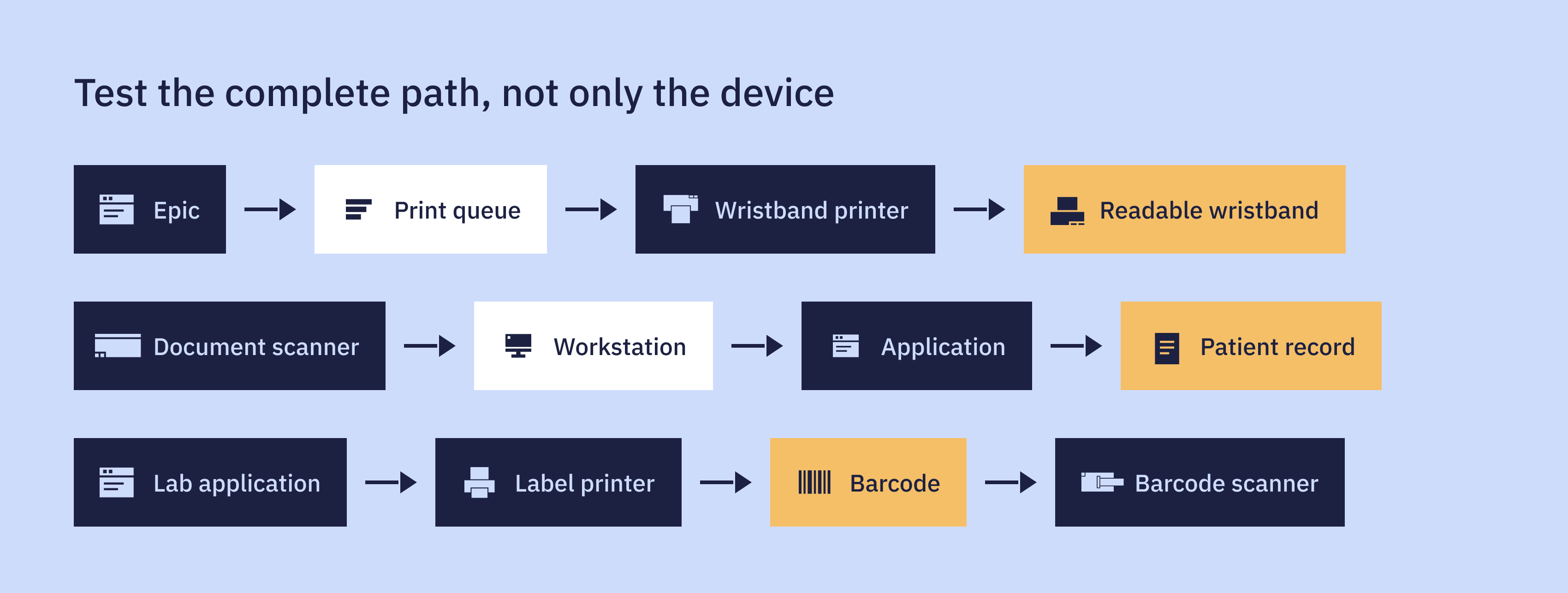
The pilot should include representative departments and user profiles because the same device can behave differently depending on its application, mapping, configuration, or workflow.
A supported driver does not confirm that the correct label format will print. A recognized scanner does not confirm that a document will route correctly. A mapped printer does not confirm that the right user will receive the right device under the right profile.
A peripheral should move into a broader deployment wave only after the production workflow has been validated.
Decide What to Fix, Modernize, or Replace
The readiness assessment and pilot will usually produce three types of remediation work.
Fix the existing configuration
Keep the device when the hardware still has a supported path and the issue can be resolved through configuration.
That may involve:
- Updating a driver or firmware
- Rebuilding a print queue
- Correcting a workstation mapping
- Updating secure-print software
- Restoring scan permissions or routing
- Reconfiguring application output
This is often the most practical route for equipment that remains reliable and supportable.
Modernize the way the device is managed
A Windows 11 migration can also expose infrastructure that has accumulated over several refresh cycles.
Print servers, manual mappings, large driver libraries, and locally maintained configurations may still work, but maintaining them can add complexity to the new environment.
Microsoft’s move toward IPP-based printing makes this a useful time to review where legacy driver and print-server dependencies can be reduced. Depending on the environment, that may include Direct IP, serverless printing, centralized queue management, or another supported print architecture.
Replace unsupported or incompatible devices
Replacement may make more sense when:
- Manufacturer support has ended
- A supported Windows 11 driver is unavailable
- Required functionality cannot be validated
- Security requirements cannot be met
- Reliability has declined
- Remediation costs no longer make sense for the remaining lifecycle
The replacement decision should start with the workflow requirement rather than a preferred manufacturer.
Plan for the Devices That Can’t Migrate Yet
Once the standard devices have been migrated, the remaining devices are more likely to have specific compatibility or workflow issues. These may include unsupported hardware, an application dependency, a medical-device vendor, an older driver, a clinical workflow, or another technical exception.
These devices need to be managed differently from the standard deployment wave.
For each exception, document:
- What is blocking migration
- Which department or workflow depends on it
- Who owns the issue
- Whether a vendor is involved
- What temporary arrangement is in place
- What remediation or replacement is required
- The target resolution date
An organization at 95% completion with clinically complex exceptions has a different problem from one with thousands of standard workstations still waiting to be scheduled.
The remediation plan should reflect that difference.
Define Ownership for the Peripheral Migration Workstream
Peripheral migration adds inventory, testing, remediation, deployment, and support responsibilities to teams that are already managing daily IT operations.
Clear ownership helps prevent peripheral work from being distributed across multiple teams without a defined point of responsibility.
For a Windows 11 migration, internal IT should retain ownership of strategic, security, application, and clinical decisions. A specialized peripheral team can take responsibility for the high-volume technical and operational work required to assess, prepare, migrate, and stabilize the peripheral environment.
Internal IT: Strategic, Clinical, and Enterprise Ownership
Internal IT maintains ownership of areas that require enterprise-level authority and clinical oversight:
- Architecture and standards: Define the overall technical architecture, standards, and migration requirements.
- Cybersecurity: Establish security requirements, policies, and risk acceptance.
- Application certification: Validate application compatibility and approve production readiness.
- Clinical acceptance: Confirm that migrated workflows meet clinical and operational requirements.
- Major incidents and escalations: Own enterprise-impacting incidents and issues requiring broader IT or clinical intervention.
Techio: Peripheral Execution and Operational Ownership
Techio manages the detailed work required to assess, prepare, migrate, and stabilize the peripheral environment:
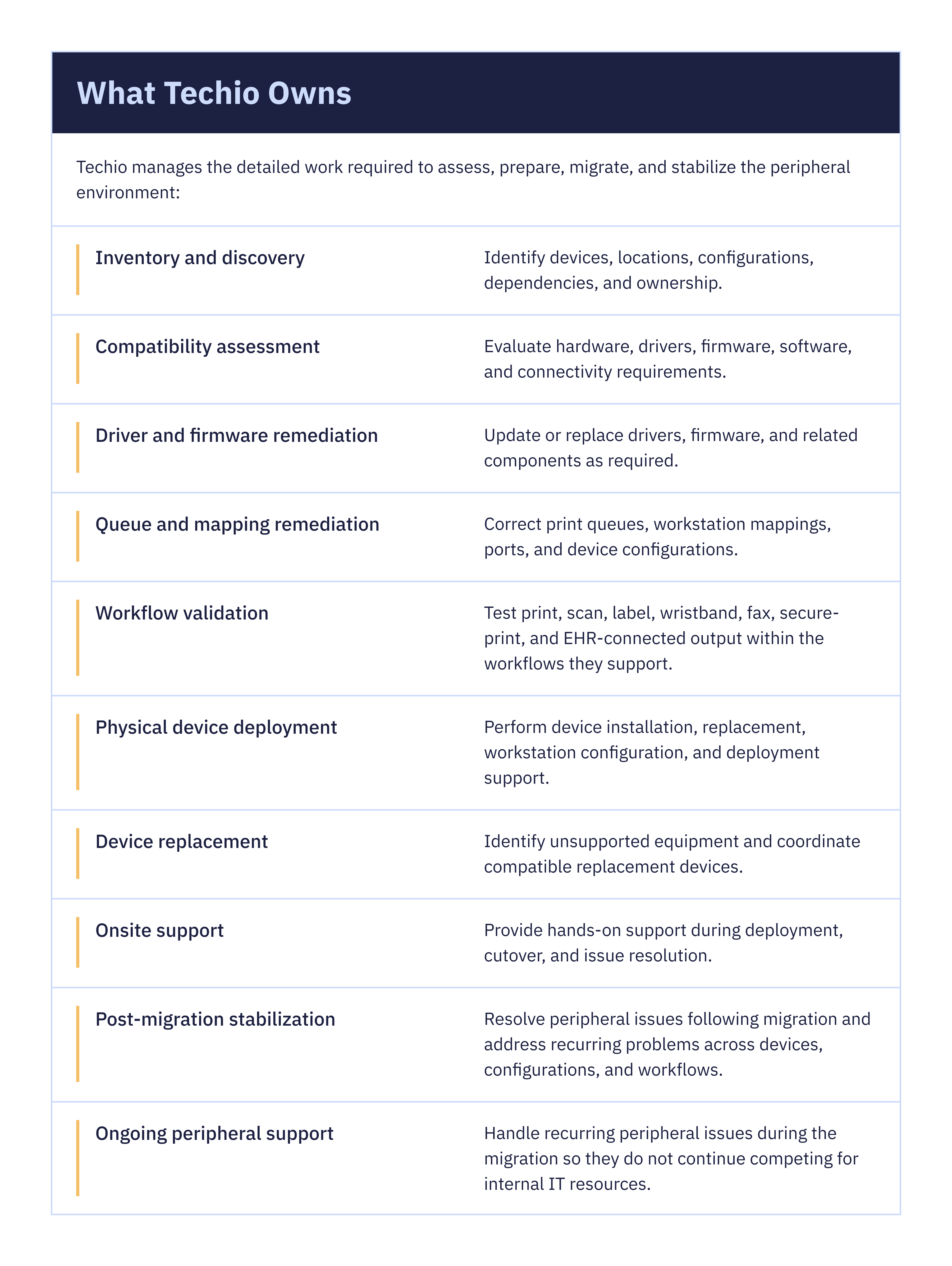
A Shared-Responsibility Model
This structure keeps enterprise architecture, security, application certification, and clinical decisions with the organization’s IT leadership while giving the peripheral workstream a dedicated execution owner.
Internal IT governs the migration. Techio executes and supports the peripheral workstream.
That division also gives internal teams more capacity to focus on application readiness, cybersecurity, infrastructure, clinical validation, and major incidents while the peripheral work continues.
Complete the Migration at the Workflow Level
A successful Windows 11 migration does not end when the workstation is upgraded.
It ends when the printer prints correctly, the scanner routes the document where it belongs, the wristband is readable, the label is accurate, the fax completes, and the clinical workflow works as expected.
Techio helps healthcare organizations manage that peripheral workstream from discovery and compatibility assessment through remediation, deployment, and post-migration stabilization.
Our team works alongside internal IT so the organization retains control over architecture, security, applications, and clinical decisions while Techio takes responsibility for the peripheral execution required to move the migration forward.
Need support with the peripheral side of your Windows 11 migration?
Healthcare organizations should test both the device and the workflow connected to it. That includes hardware support, drivers, firmware, print queues, workstation mappings, secure-print software, scanner routing, fax configurations, and EHR-connected output. Testing should confirm that the complete production workflow works correctly before broader deployment.
No. A printer or scanner can be supported on Windows 11 and still fail within the workflow it supports. A printer may have a compatible driver but produce an incorrect label, while a scanner may be recognized by Windows but fail to route documents to the correct application or patient record.